Installation Guide
Follow our step-by-step tutorials to set up Vubo IPTV on your favorite device. Whether you're using a Firestick, Smart TV, Android, iOS, or PC, we have you covered.
How to set up IPTV on Apple/iOS with IPTV Smarters Player:
Step 1: Start by downloading the IPTV Smarters app from the Apple Store
Or you can search for it on the App Store: Smarters Lite Player
Step 2: Open the application once downloaded and select "Login with Xtream Codes API.
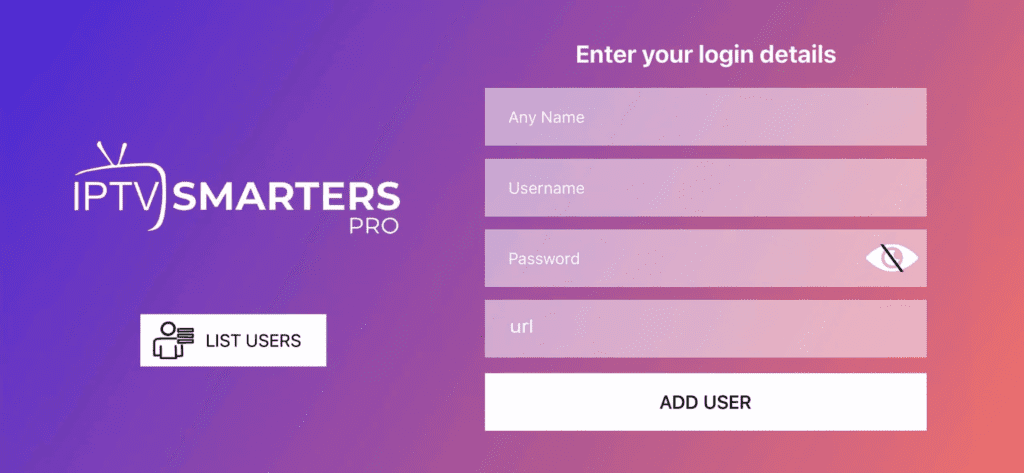 Step 3: Enter the login information provided to you after subscribing to our service. Now click on
"ADD USER" to proceed to the next section.
Step 3: Enter the login information provided to you after subscribing to our service. Now click on
"ADD USER" to proceed to the next section.
Step 4: Wait a few seconds.
Step 5: Now click on the "Live TV" icon as illustrated in the image via a red arrow.
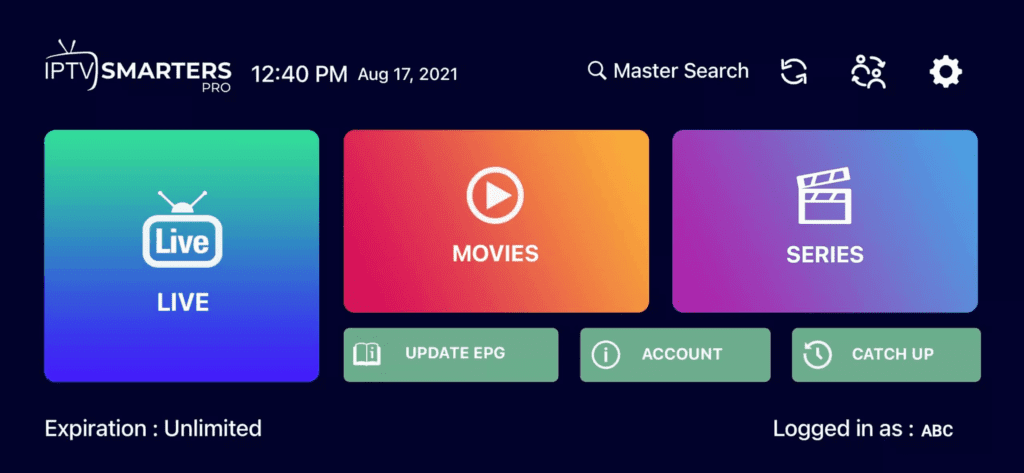 Step 6: Select the channel group you want to watch.
Step 7: Click on the channel name and double-click the small screen to go full screen.
Step 8: No need to add an EPG URL, just click on "Install EPG".
Step 1: Start by downloading the IPTV Smarters app from the Apple Store
Or you can search for it on the App Store: Smarters Lite Player
Step 2: Open the application once downloaded and select "Login with Xtream Codes API.
Step 3: Enter the login information provided to you after subscribing to our service. Now click on
"ADD USER" to proceed to the next section.Step 4: Wait a few seconds.
Step 5: Now click on the "Live TV" icon as illustrated in the image via a red arrow.
Step 6: Select the channel group you want to watch.Step 7: Click on the channel name and double-click the small screen to go full screen.
Step 8: No need to add an EPG URL, just click on "Install EPG".
How to set up IPTV on Android with IPTV Smarters Player:
Step 1: Start by downloading the IPTV Smarters application.
Step 2: Open the application once downloaded. Select "Login with Xtream Codes API".
Step 3: Enter the login information provided to you after subscribing to our service. Click on "ADD
USER".
Step 4: Wait a few seconds.
Step 5: Now click on the "Live TV" icon.
Step 6: Select the channel group you want to watch.
Step 7: Click on the channel name and double-click to full screen.
Step 1: Start by downloading the IPTV Smarters application.
Step 2: Open the application once downloaded. Select "Login with Xtream Codes API".
Step 3: Enter the login information provided to you after subscribing to our service. Click on "ADD
USER".Step 4: Wait a few seconds.
Step 5: Now click on the "Live TV" icon.
Step 6: Select the channel group you want to watch.Step 7: Click on the channel name and double-click to full screen.
For Samsung Smart TVs:
Step 1: Press the Smart Hub button on your remote control.
Step 2: Search for IPTV Smarters Pro to install.
Step 3: Choose "Login with Xtreme codes".
Step 4: Log in to the application with your subscription details.
For LG Smart TV:
Step 1: Press the Home button and go to the LG Content Store.
Step 2: Search for IPTV Smarters Pro to install.
Step 3: Choose "Login with Xtreme codes".
Step 4: Log in to the application with your subscription details.
Step 1: Press the Smart Hub button on your remote control.
Step 2: Search for IPTV Smarters Pro to install.
Step 3: Choose "Login with Xtreme codes".
Step 4: Log in to the application with your subscription details.
For LG Smart TV:
Step 1: Press the Home button and go to the LG Content Store.
Step 2: Search for IPTV Smarters Pro to install.
Step 3: Choose "Login with Xtreme codes".
Step 4: Log in to the application with your subscription details.
Here are the steps to set up IPTV on Fire TV Stick:
Step 1: From your device's home screen, hover over the Search option.
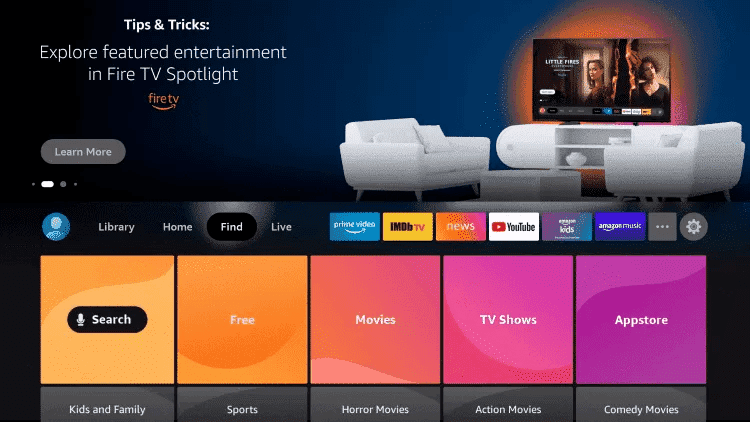
Step 2: Click on Search.
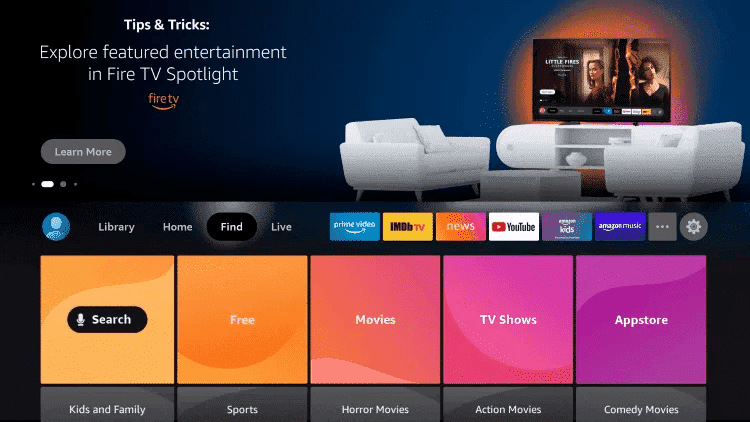
Step 3: Search for and select Downloader.
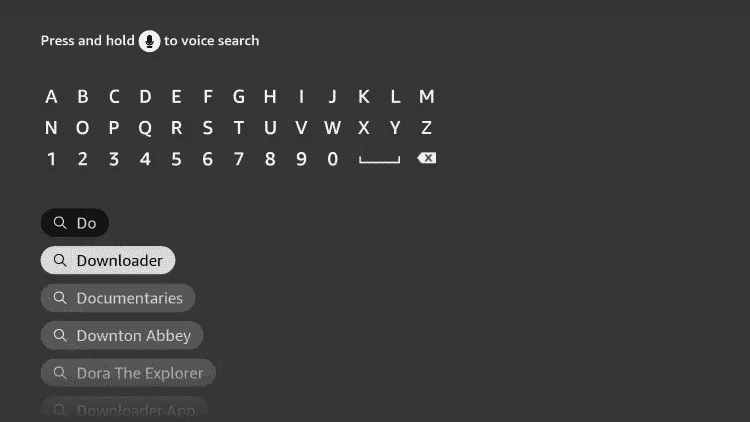
Step 4: Choose the Downloader application.
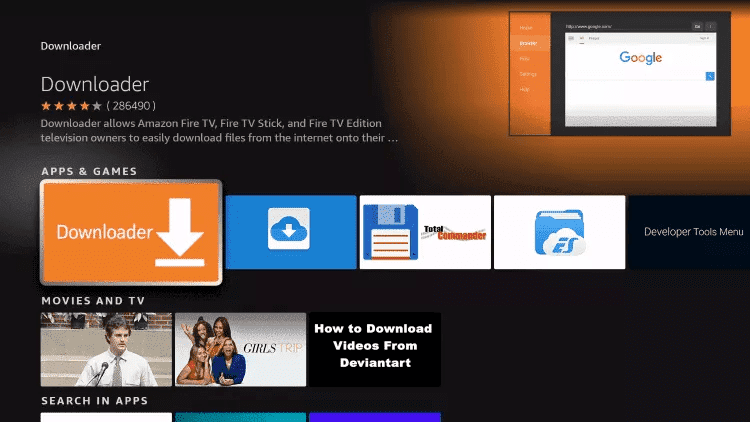
Step 5: Click on Download.
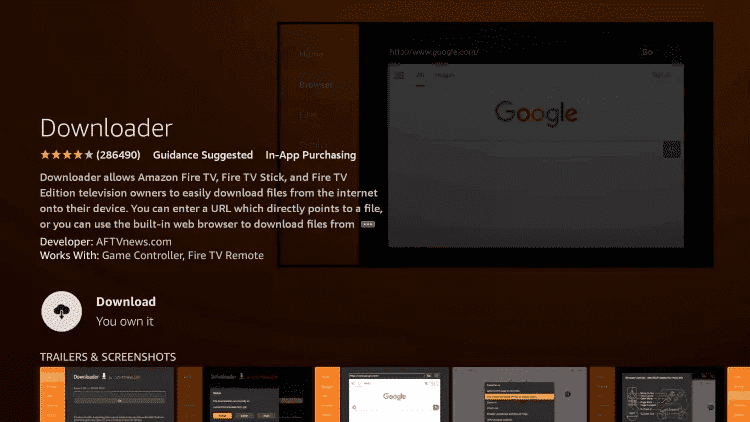
Step 6: Once installed, click Open.
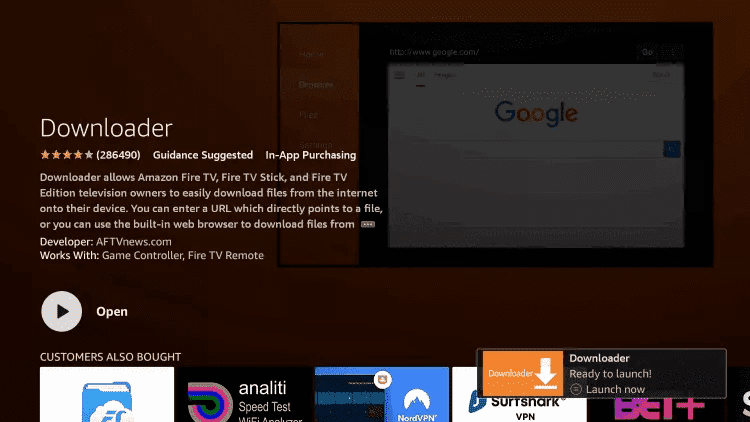
Step 7: Go back to home and open Settings.
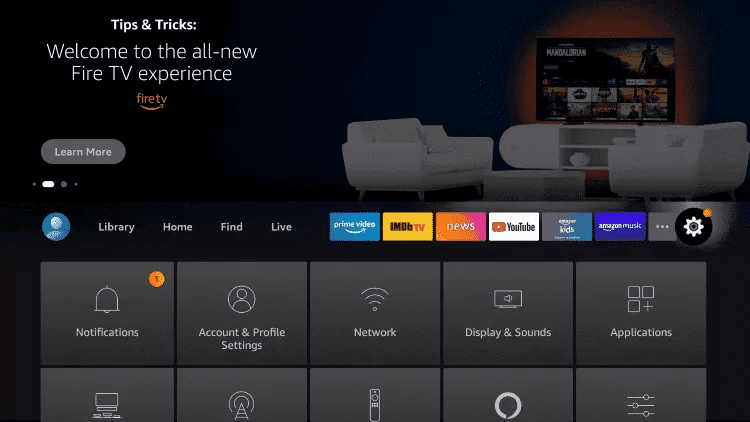
Step 8: Click on My Fire TV.
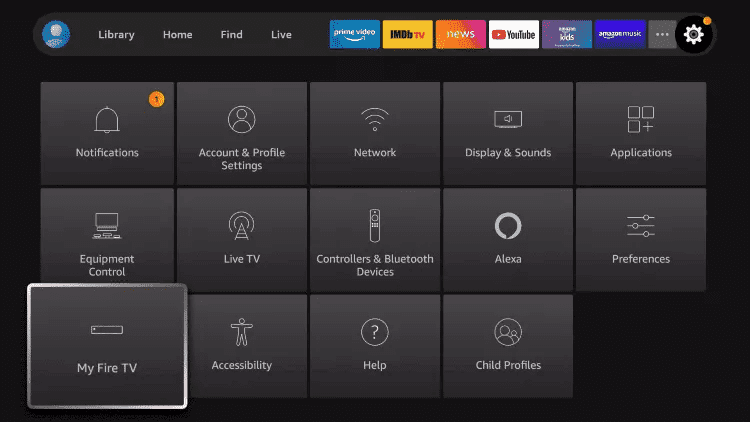
Step 9: Choose Developer options.
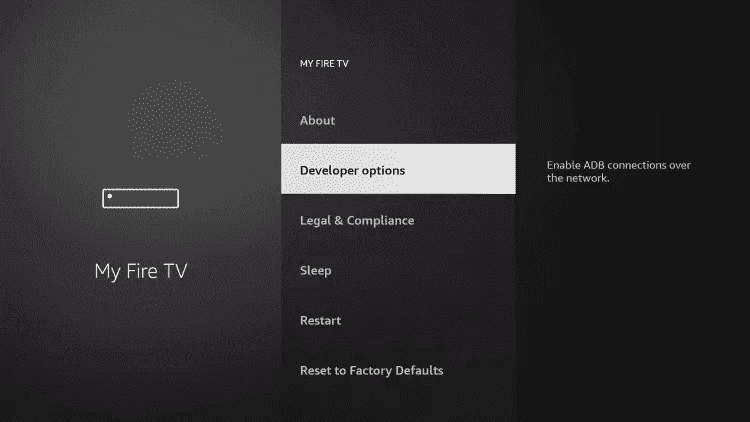
Step 10: Click on Install Unknown Apps.
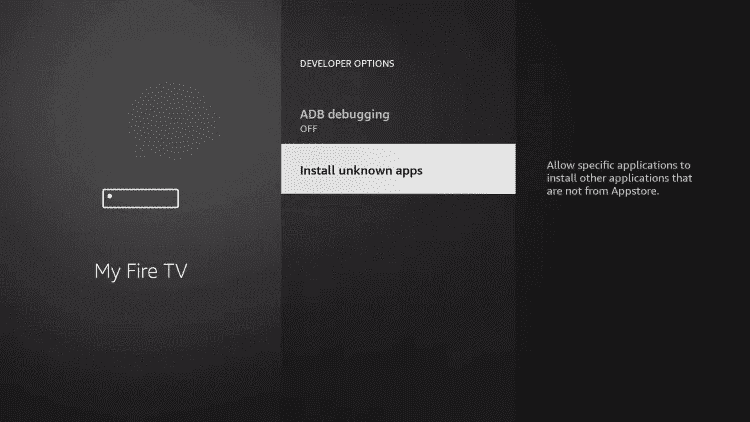
Step 11: Search for Downloader and click on it.
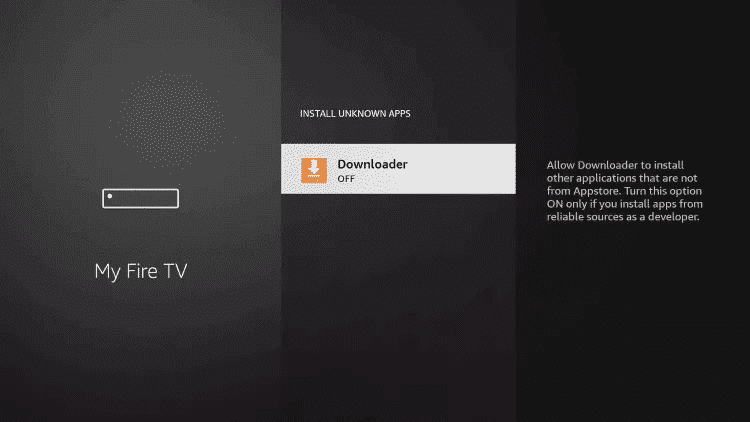
Step 12: Enable it.
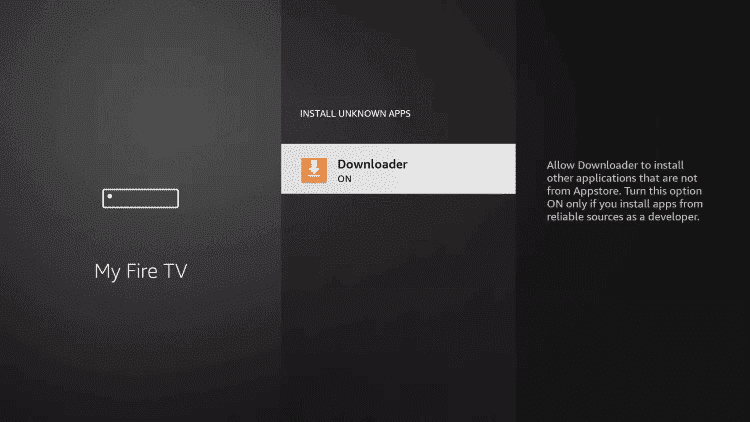
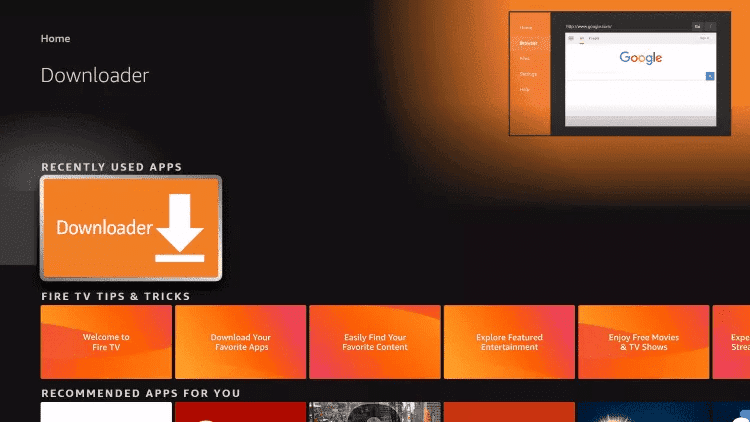
Step 13: Launch Downloader.
Step 14: Allow permissions.
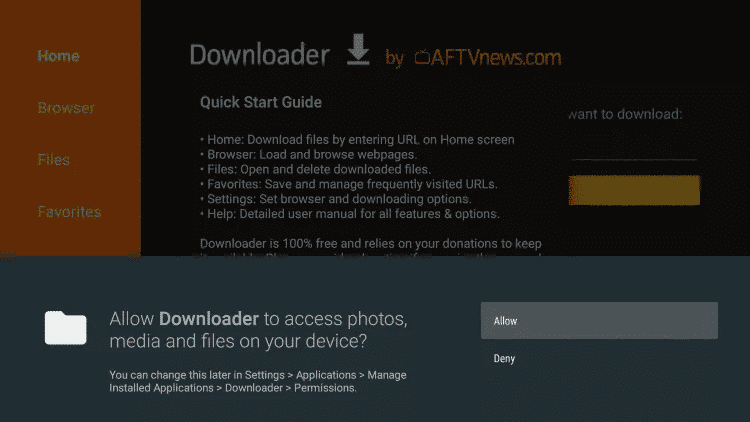
Step 15: Click OK.
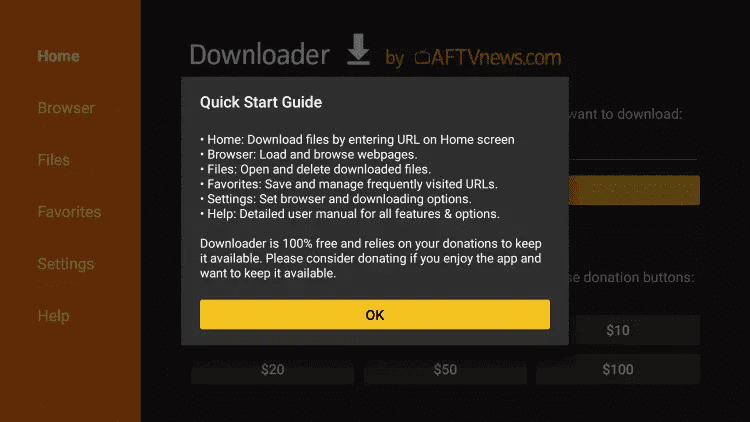
Step 16: Type https://www.iptvsmarters.com/smarters.apk and click Go.
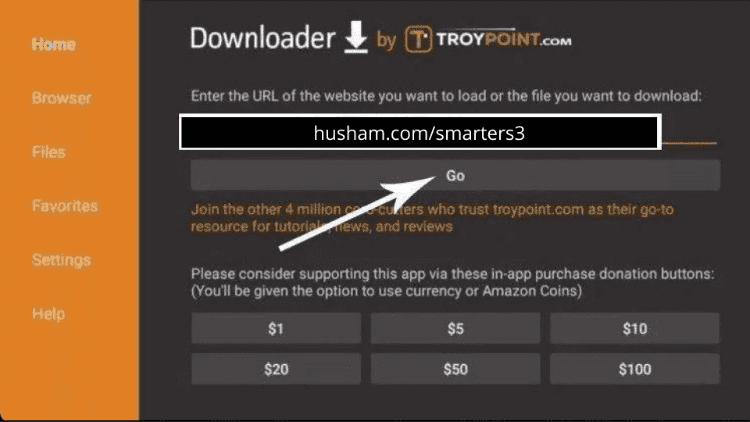
Step 17: Wait for download.
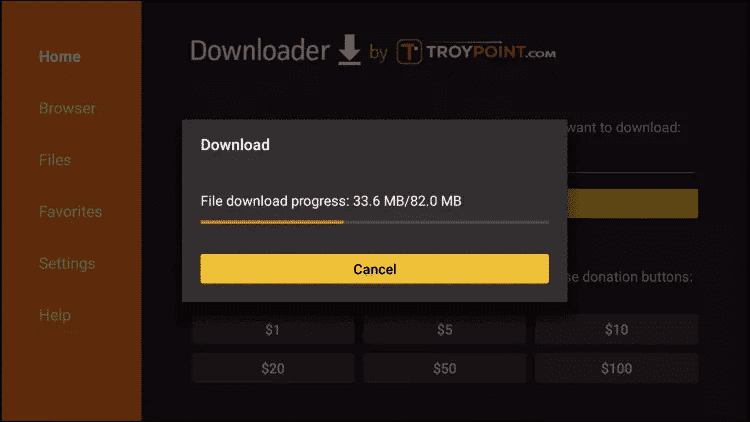
Step 18: Click Install.
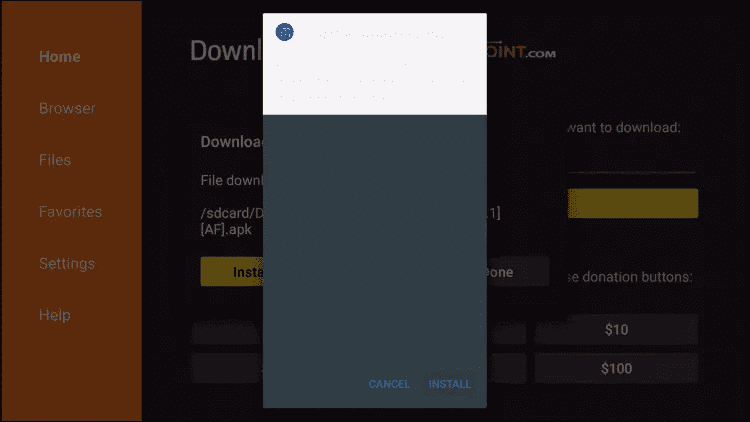
Step 19: Click Done.
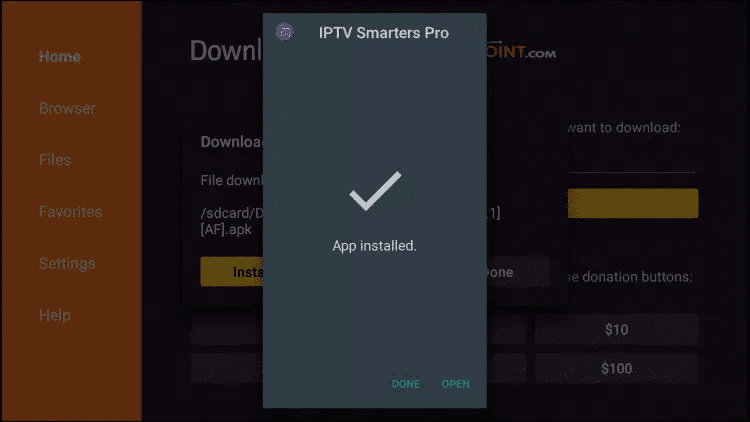
Step 20: Open IPTV Smarters and select Login with Xtream Codes API.
Step 21: Enter your subscription details.
Step 1: From your device's home screen, hover over the Search option.
Step 2: Click on Search.
Step 3: Search for and select Downloader.
Step 4: Choose the Downloader application.
Step 5: Click on Download.
Step 6: Once installed, click Open.
Step 7: Go back to home and open Settings.
Step 8: Click on My Fire TV.
Step 9: Choose Developer options.
Step 10: Click on Install Unknown Apps.
Step 11: Search for Downloader and click on it.
Step 12: Enable it.
Step 13: Launch Downloader.
Step 14: Allow permissions.
Step 15: Click OK.
Step 16: Type https://www.iptvsmarters.com/smarters.apk and click Go.
Step 17: Wait for download.
Step 18: Click Install.
Step 19: Click Done.
Step 20: Open IPTV Smarters and select Login with Xtream Codes API.
Step 21: Enter your subscription details.
Step 1: Launch Kodi.
Step 2: In the left menu, click on TV.
Step 3: Click on Add-on Browser.
Step 4: Click on PVR IPTV Simple Client.
Step 5: Click on Configure.
Step 6: Select General.
Step 7: Enter the URL of the IPTV subscription.
Step 8: Wait until loaded.
Step 2: In the left menu, click on TV.
Step 3: Click on Add-on Browser.
Step 4: Click on PVR IPTV Simple Client.
Step 5: Click on Configure.
Step 6: Select General.
Step 7: Enter the URL of the IPTV subscription.
Step 8: Wait until loaded.
Setting up IPTV on MAG BOX:
Step 1: Go to Settings and press SETUP/SET.
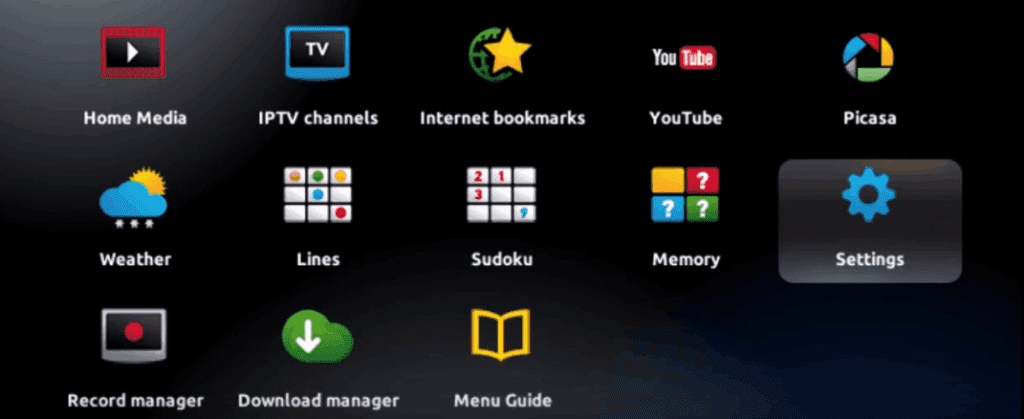
Step 2: Press System Settings and click Servers.
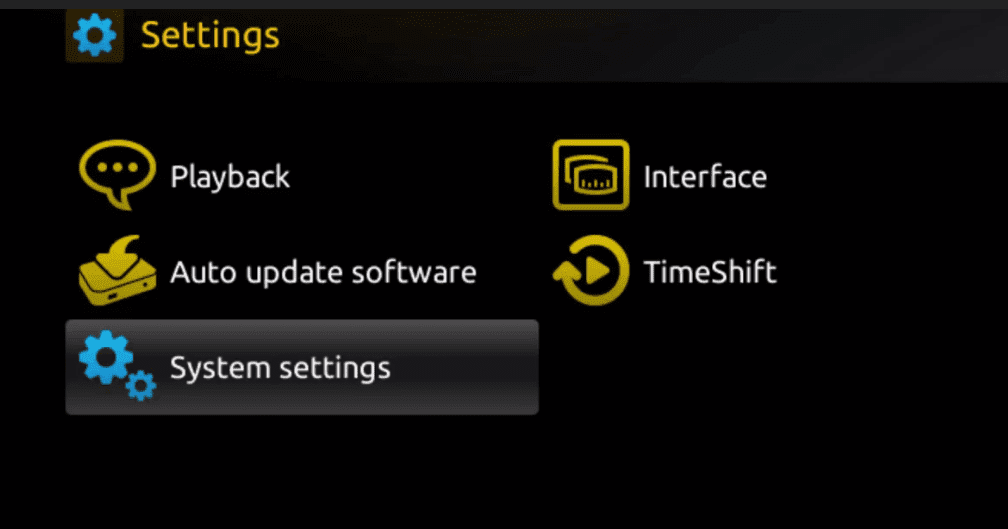
Step 3: Click on Servers.
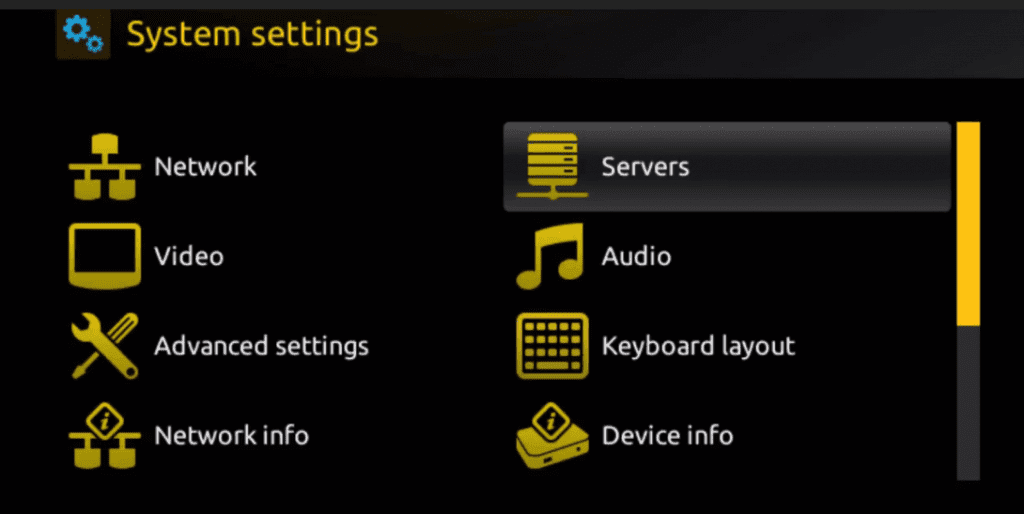
Step 4: Choose Portals.
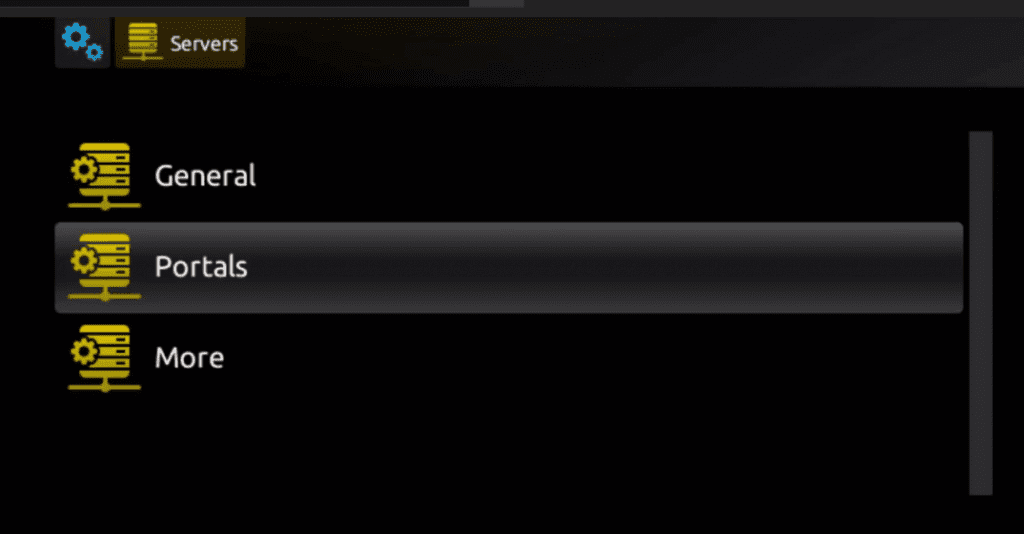
Step 5: Enter Portal Name and Portal URL.
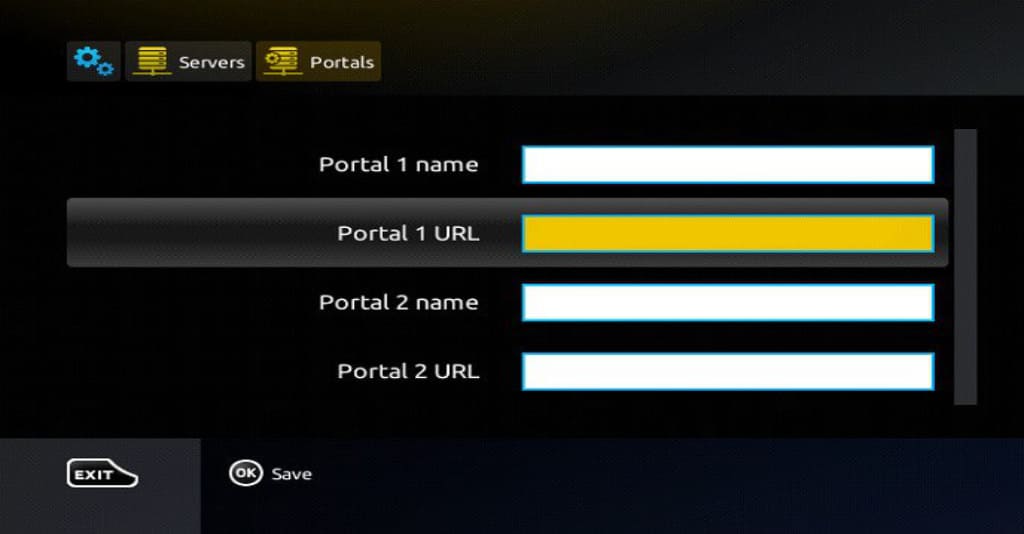
Note: Provide us your MAC address for activation.
Step 6: Click OK to save.
Step 7: Click EXIT.
Step 8: Restart the box.
Step 1: Go to Settings and press SETUP/SET.
Step 2: Press System Settings and click Servers.
Step 3: Click on Servers.
Step 4: Choose Portals.
Step 5: Enter Portal Name and Portal URL.
Note: Provide us your MAC address for activation.
Step 6: Click OK to save.
Step 7: Click EXIT.
Step 8: Restart the box.
How to set up IPTV on Windows:
Step 1: Download the IPTV Smarters Pro application for Windows.
Step 2: Install and open the application.
Step 3: Select "Login with Xtream Codes API".
Step 4: Enter the subscription details (Username, Password, and URL) sent to your email.
Step 5: Click "Add User" and wait for the channels to load.
Step 6: Enjoy streaming your favorite content on your PC.
Step 1: Download the IPTV Smarters Pro application for Windows.
Step 2: Install and open the application.
Step 3: Select "Login with Xtream Codes API".
Step 4: Enter the subscription details (Username, Password, and URL) sent to your email.
Step 5: Click "Add User" and wait for the channels to load.
Step 6: Enjoy streaming your favorite content on your PC.